Want to get the benefits of a personal AI agent that can do all sorts of things for you? But scared of the OpenClaw security issues and technical complexity? Don’t want to buy expensive services or hardware? In this post I share how I have set up my own personal AI agent and how you can get your own. The simple version only requires Claude Desktop, while the more advanced one sets up an AWS server where your agent lives.
What the agent does
If you want to try it out and follow along, go to Cowork in Claude Desktop and paste in the following:
In the Github repo gregertw/claude-code-agent you will find instructions for how to set up an autonomous agent. Download the repo zip file and follow the instructions in the README.
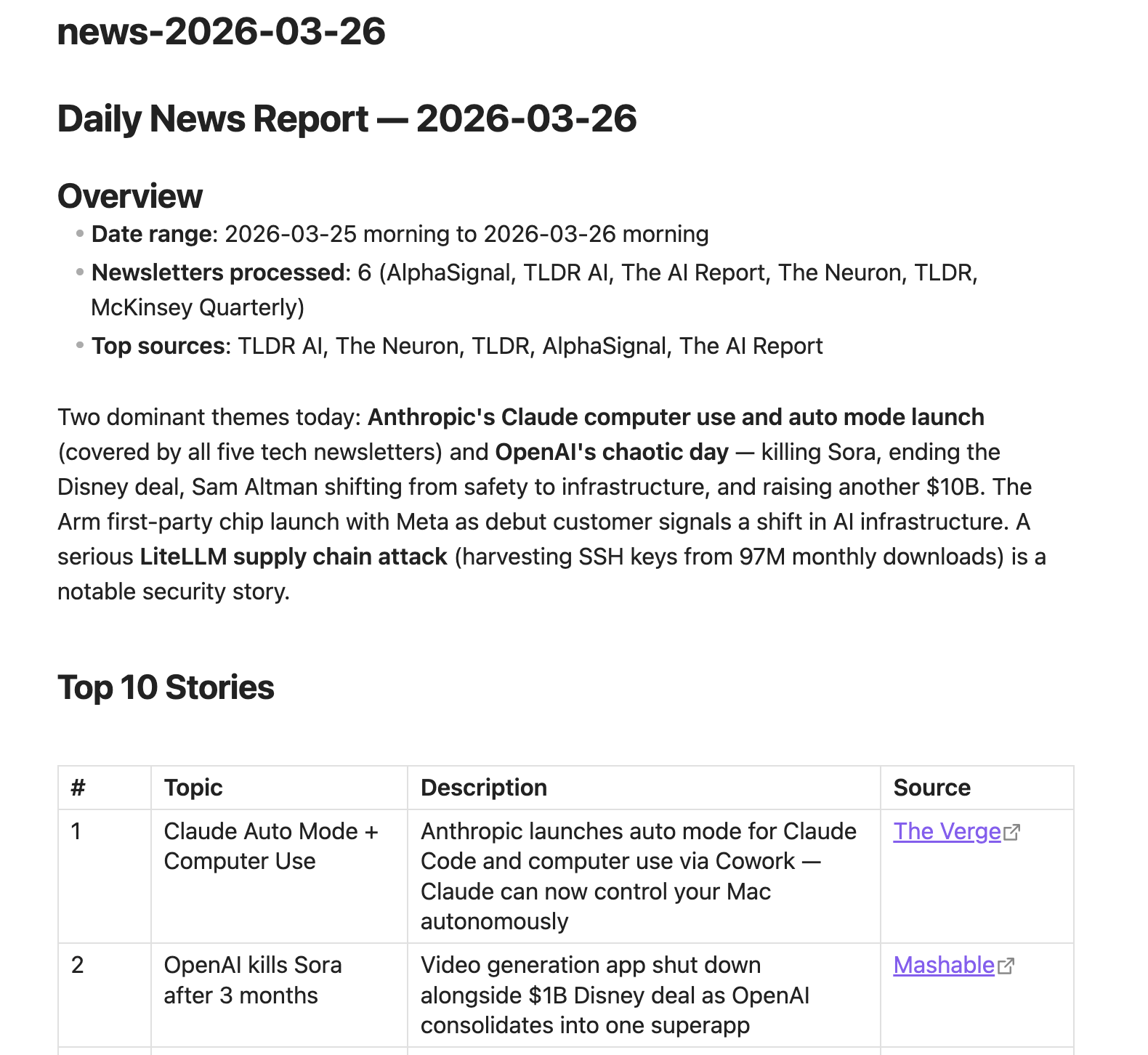
First of all, what is a 24×7 agent really good for? Basically, it is good for two things: check something relevant for you and act on that (like new emails) or pick up a task you want AI to work on. The first requires that the agent has access to your services, the second requires a simple way for you to request a task and process the results. What many people have found is that it’s cumbersome to have an agent running on your laptop as you want to close it and take it with you. Still, you got a whole lot of value by having an agent on your laptop, hence my basic setup used Claude Cowork and is run on regular intervals using a schedule. Easy and practical. My expanded setup uses a server running in AWS and costs me about $6 per month (right now). Don’t worry, you don’t need to know AWS to set up your own.
In the below Claude screenshot, I asked it “Who are you and what can you do?“
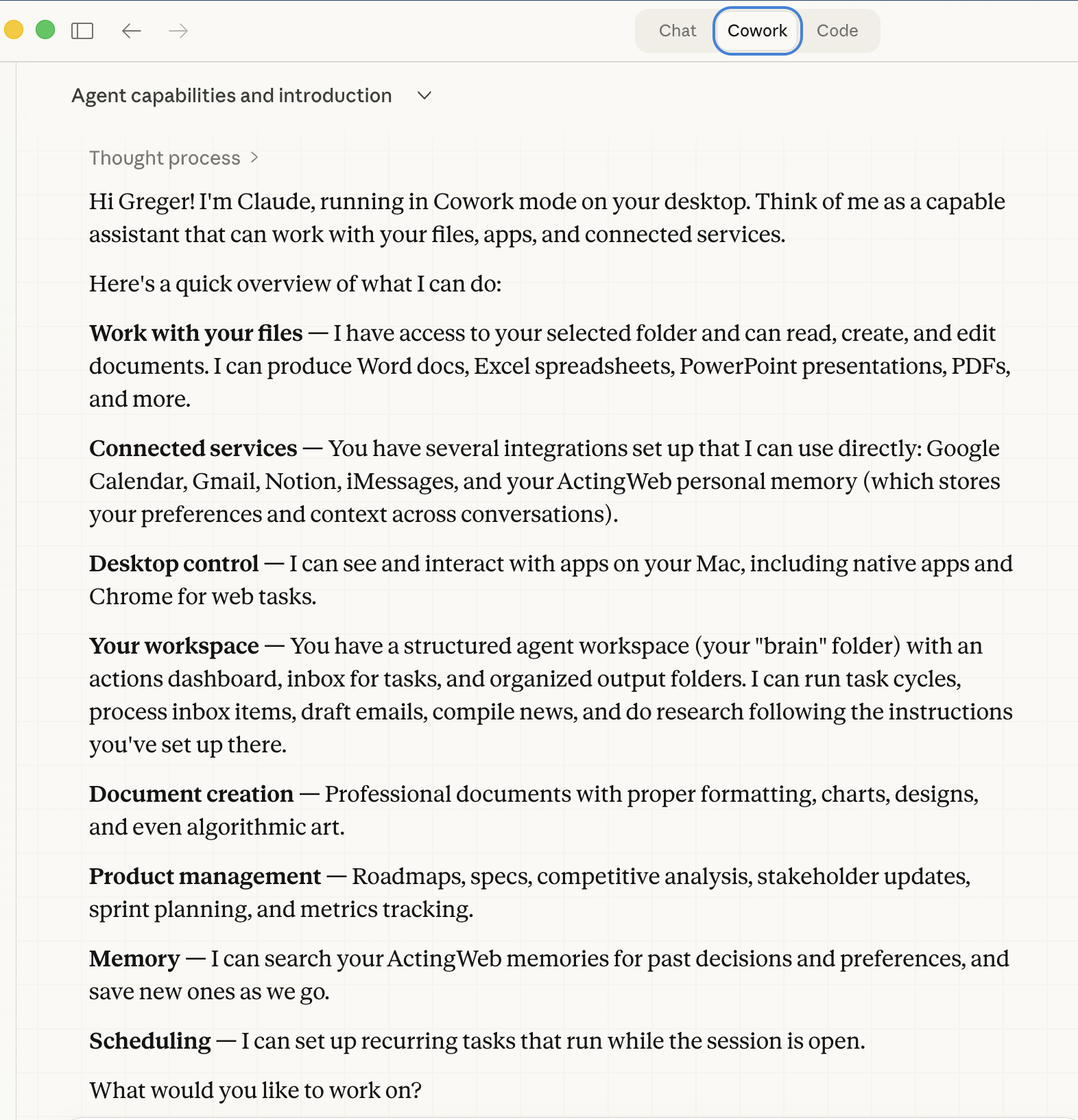
A couple of things worth mentioning from Claude's response above: The central piece is really the "structured agent workspace". It contains instructions to Claude on how to behave and what to do as an agent. The workspace consists of a bunch of markdown documents stored locally on disk, and I just point Claude Cowork to the folder. In addition, the agent has access to a centralized, personal memory system called ActingWeb. More static, slow-evolving facts live in the markdown files, but ActingWeb has semantic search so the agent gets more tailored context when querying for relevant information. The agent works without ActingWeb, but gives you more personalized results with it.
So, these are the things my agent does for me:
- It does everything using my writing style.
- It reads my new emails and:
- Writes email drafts
- Creates an email digest
- Creates a personalized daily news summary
- It reviews my calendar and does research on people and companies I’m meeting, as well as flags conflicts, things to remember (upcoming birthday!), and other issues.
- It picks up any tasks that I have sent it:
- Do some research as specified
- Iterate on an email or send an approved one
- Various maintenance tasks:
- Reviews the memories that have been stored and suggest improvements
- Reviews what has been done lately and suggests ways to improve how the agent works
- Detects any things that have gone wrong and tries to figure out why
Each morning I have an email digest to quickly browse through, as well as context about the people and companies I’m going to meet. I get alerted to new things throughout the day as it’s elevated to my ACTIONS list. Also, when I have something I want to remember or start working on, I just send an instruction to the agent.
I can ask Claude to either schedule an agent run every X minutes, or ask it to do a manual run. In the video below, I ask it what it will do for every task run.
What is my setup?
In this section, I will cover all the parts of my setup, including the more advanced, but starting from the basics. This diagram illustrates all the different parts in the full setup (note that in the basic setup, only Claude Cowork and markdown files are mandatory).
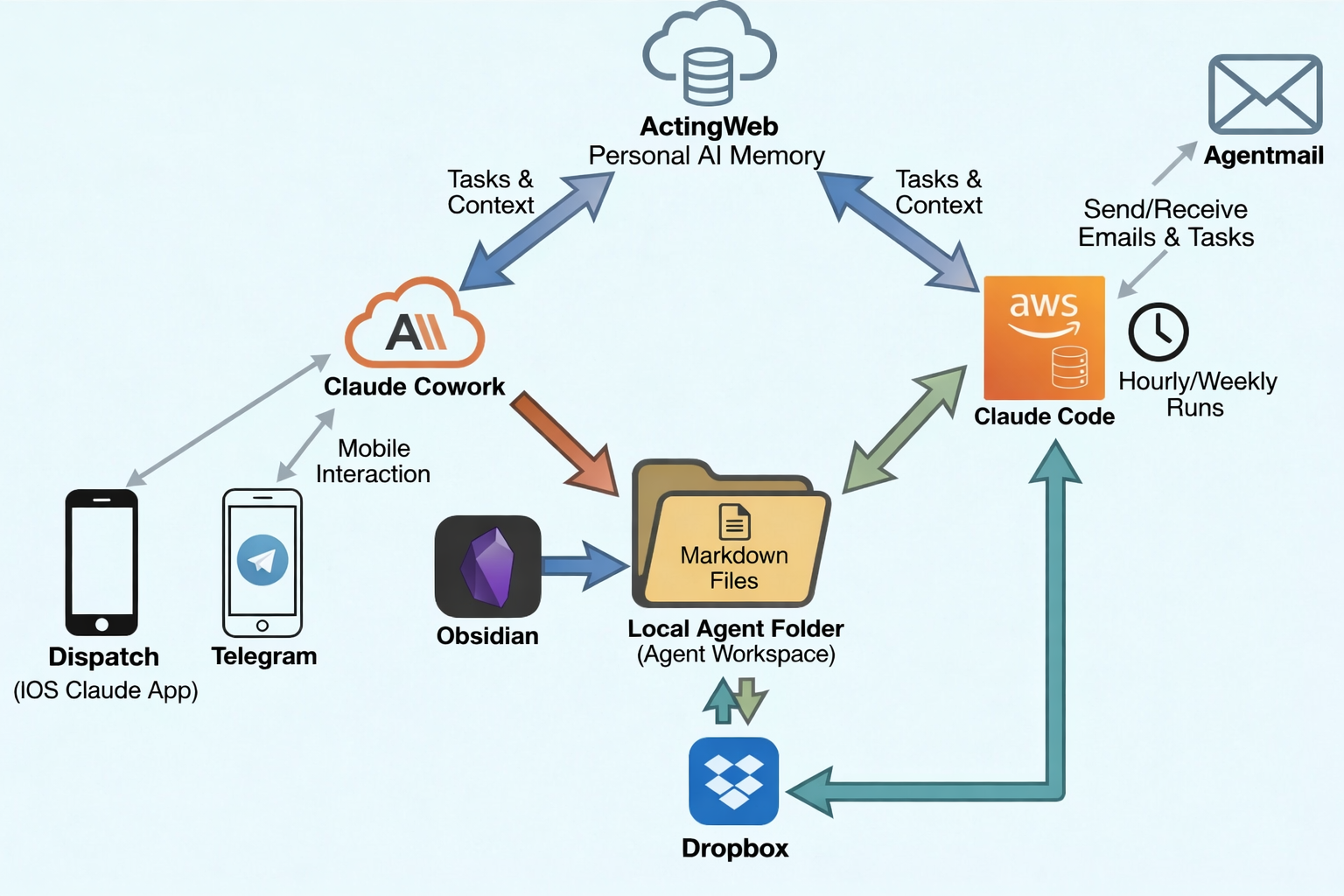
The center of my setup is the local agent folder with markdown files that includes instructions to Claude, as well as a structure for the agent’s work. I use Obsidian as an editor and viewer for this workspace, and as a simple way to interact with the agent (make decisions on actions it has flagged, write new tasks, etc). By using the scheduling functionality in Claude Cowork, you already have a working agent. If you want to play with various ways of interacting from your mobile with the agent, you can either use Dispatch (in Claude Cowork) and your Claude iOS app or you can experiment with the channels functionality and use Telegram.
I only have a laptop, so it doesn’t really work for me to run the agent there. So, instead, I have installed Claude and the whole agent folder workspace on an AWS server. The Github repo fixes setting this up for you, and Claude can guide you through everything you need. Just get yourself an AWS account. When setting it up, you decide how often you want the agent to run. In reality, running it once an hour and one or twice during the weekend does wonders, and that will only cost you $5-6 per month!
When the agent is running on the server, you need a way to communicate with it. We have set up the ActingWeb Personal AI Memory service, and it has a task context builder that is super-simple to use to set up a new task for the agent. It is preconfigured, so on every run, the agent will check if there are new tasks to work on from the ActingWeb Service.
So, the additional spice: I have stored the agent folder in Dropbox, and the folder syncs before and after a run on the AWS server. This means that I can use both my laptop and Claude Cowork as well as Obsidian to work on my documents, and the agent is running in the cloud every hour. And just for fun, I have added support for Agentmail. This gives the agent its own email address, and it can send emails using its own identity. Both Dropbox and Agentmail are optional features that you can set up from the claude-code-agent Github repo.
Structured Agent Workspace
When pointing Claude to the agent repo, Claude will download the templates and guide you through setting up the agent workspace. Here’s what the workspace structure looks like:
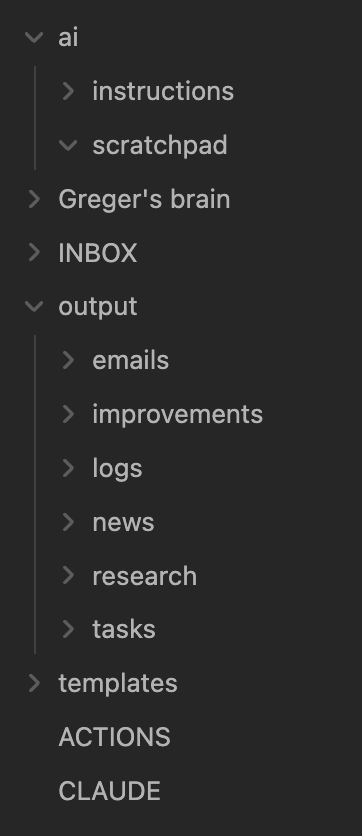
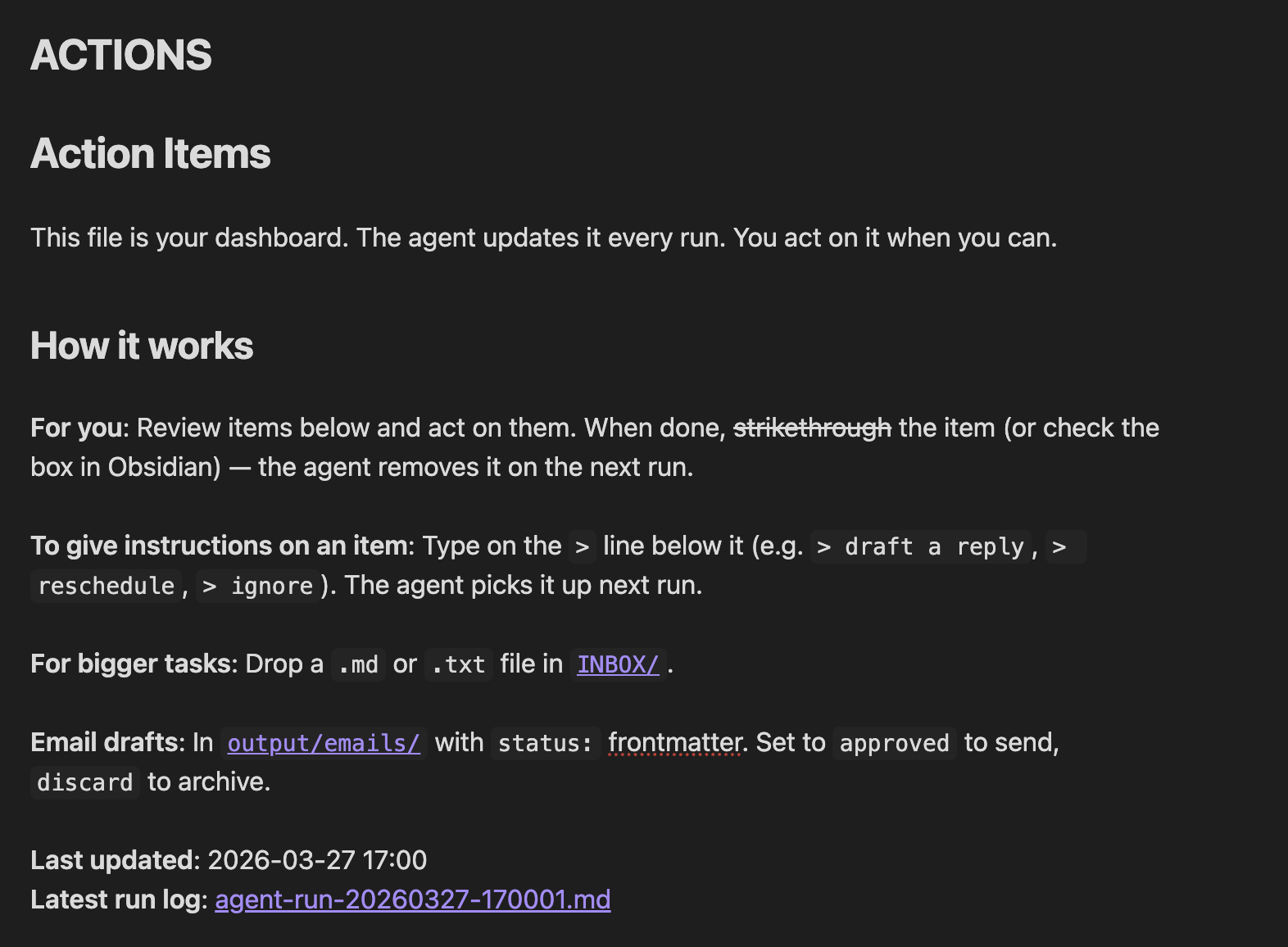
As you can see, it’s fairly simply. The CLAUDE.md file and the ai folder contain all the instructions to the agent, then there’s an INBOX for the agent, an output folder where the agent puts what it has done, and a template folder that contains templates for different types of documents. And the most important file: the ACTIONS.md that acts as a dashboard for you and where the agent puts all actions. “Greger’s brain” are just my own folder structure with documents I want to keep.
Information to you from the ACTIONS.md file:
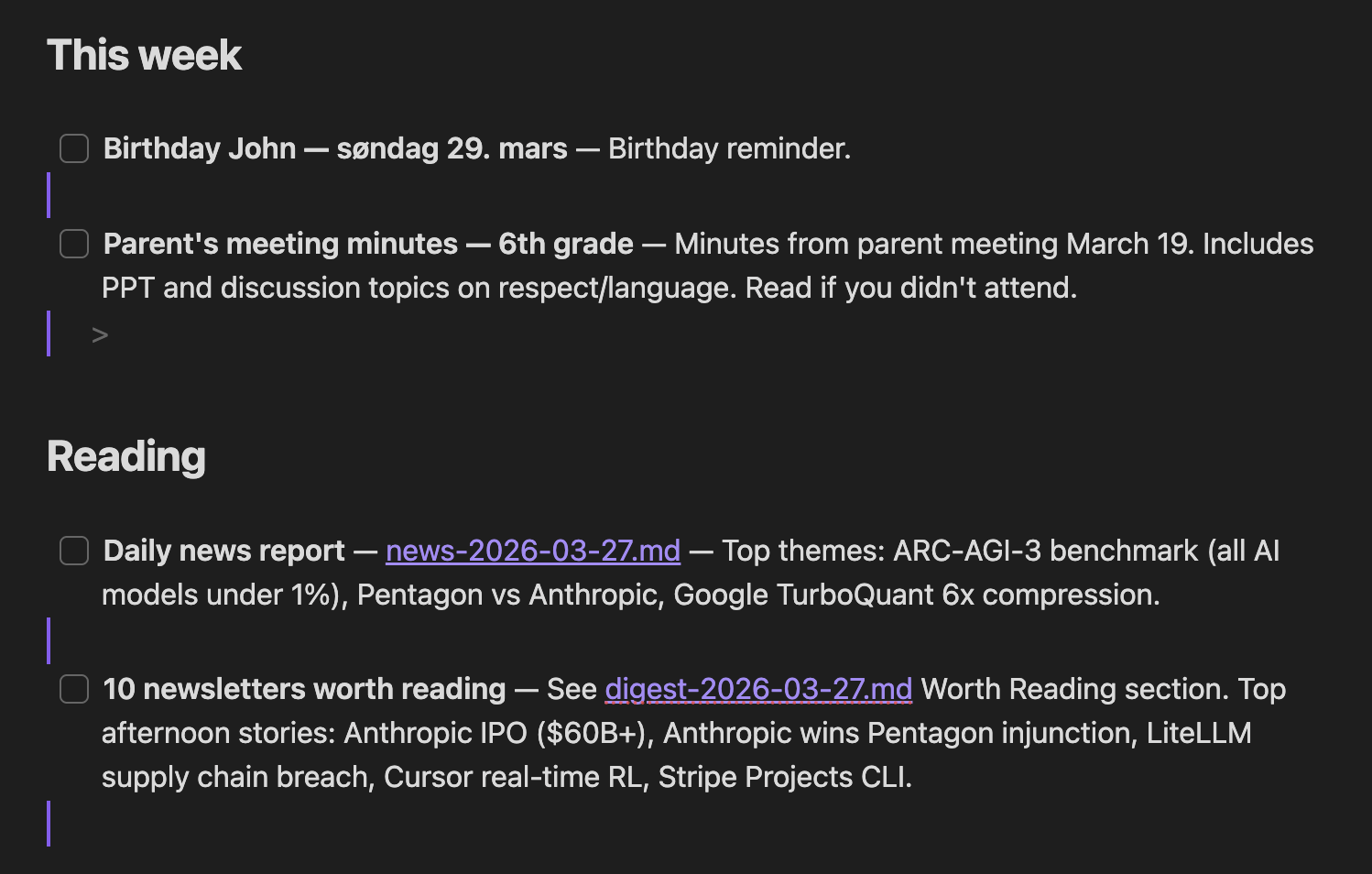
Example actions from the agent:
MCP Tools
Having access to the agent workspace markdown files on the local disk is not enough for the agent, it also needs some tools:
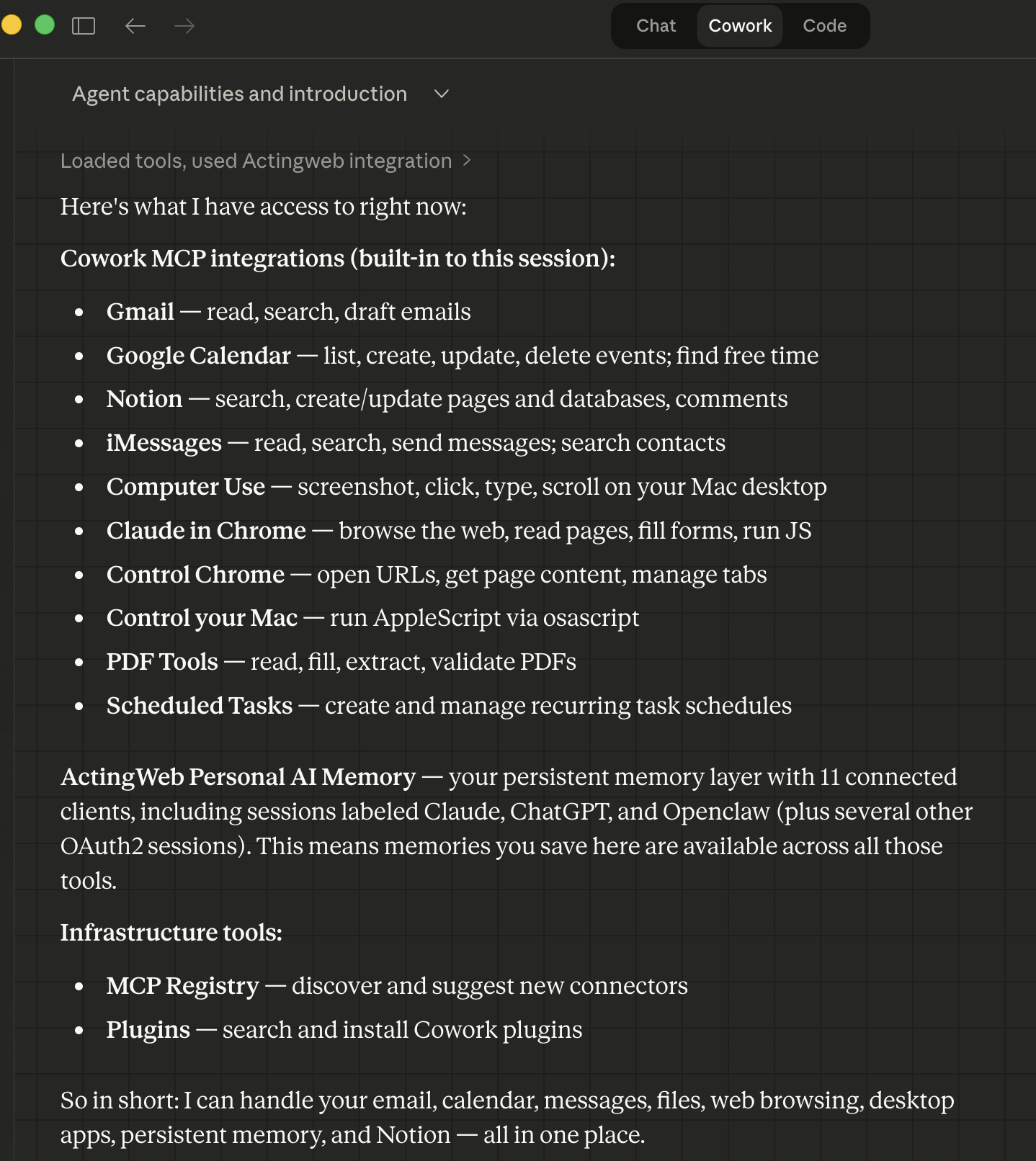
The most important connectors for the functioning of the agent are Gmail, Google Calendar, and ActingWeb Personal AI Memory. You can also add other MCP tools (and plugins and skills) to enable the agent to do more tasks, like Notion, PDF tools, and more.
Personal Style and Scheduling
If you asked Claude to follow the instructions in the claude-code-agent Github repository, it guides you through customizations, including using your emails to define your personal writing style (found in style.md and personal.md) and to set up a schedule:
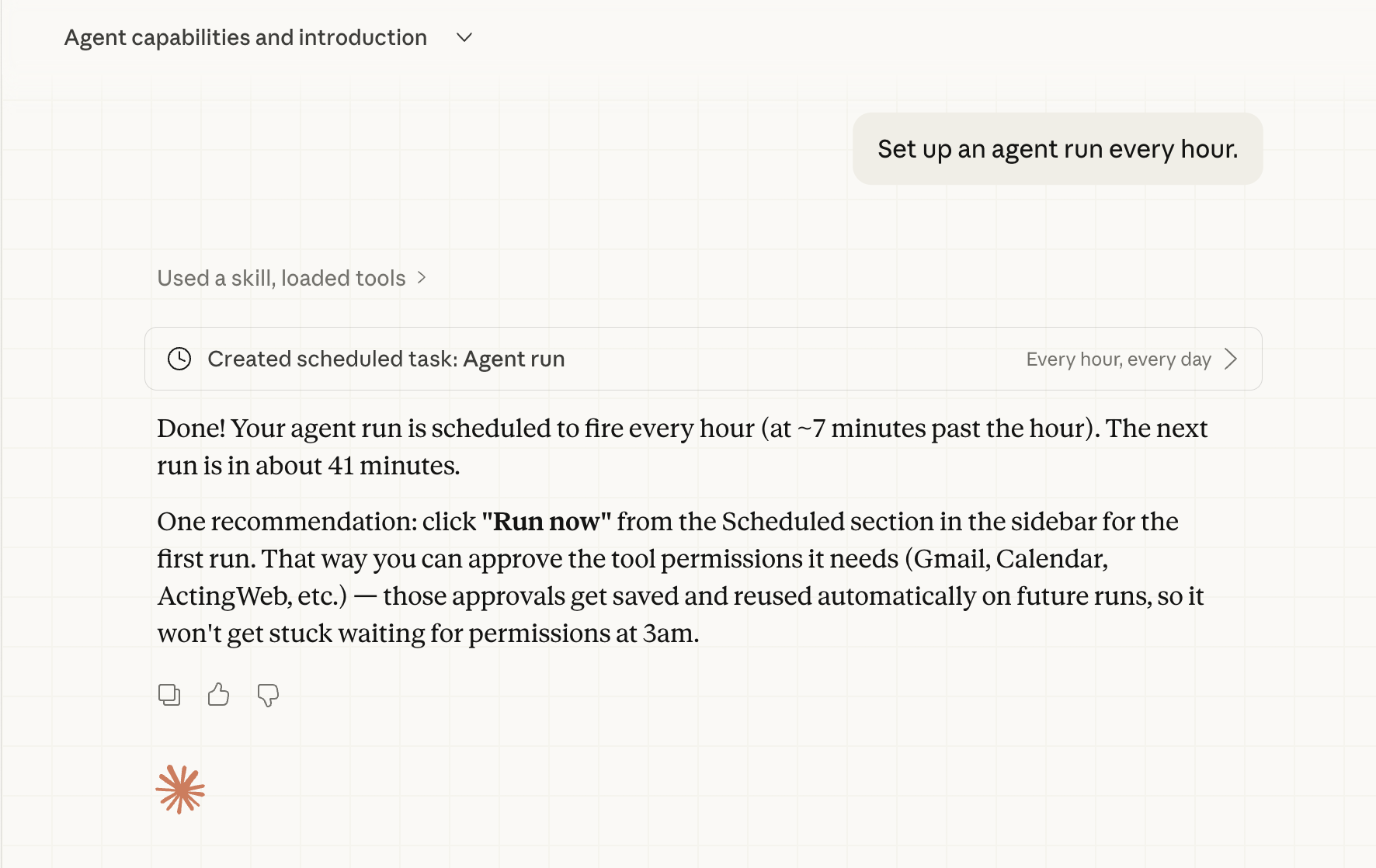
As long as your computer runs, the agent will now do its work on a regular basis. You can ask it to do tasks, and since it’s running in the agent’s brain folder, it will know how it should do it’s work.
The Agent-Manager
If you choose to set up the AWS server, Claude (or you directly from the command line) can use the agent-manager.sh to control the AWS server. Claude will help you install the aws cli tool that is necessary as part of the installation. The folder where Claude put the Github repository will contain the agent.conf file that configures your server and the deploy-state.json file that contains details about what has been set up in AWS. This means that Claude can also run the agent-manager.sh for you.
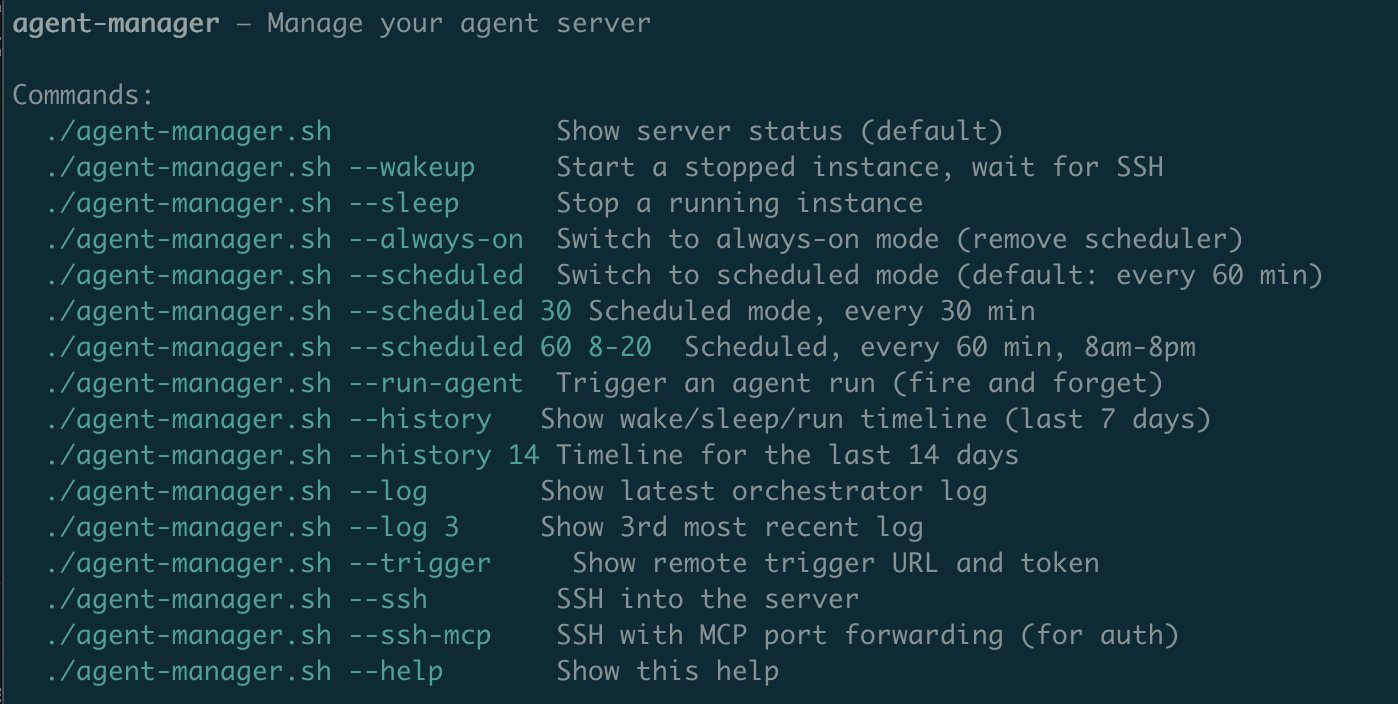
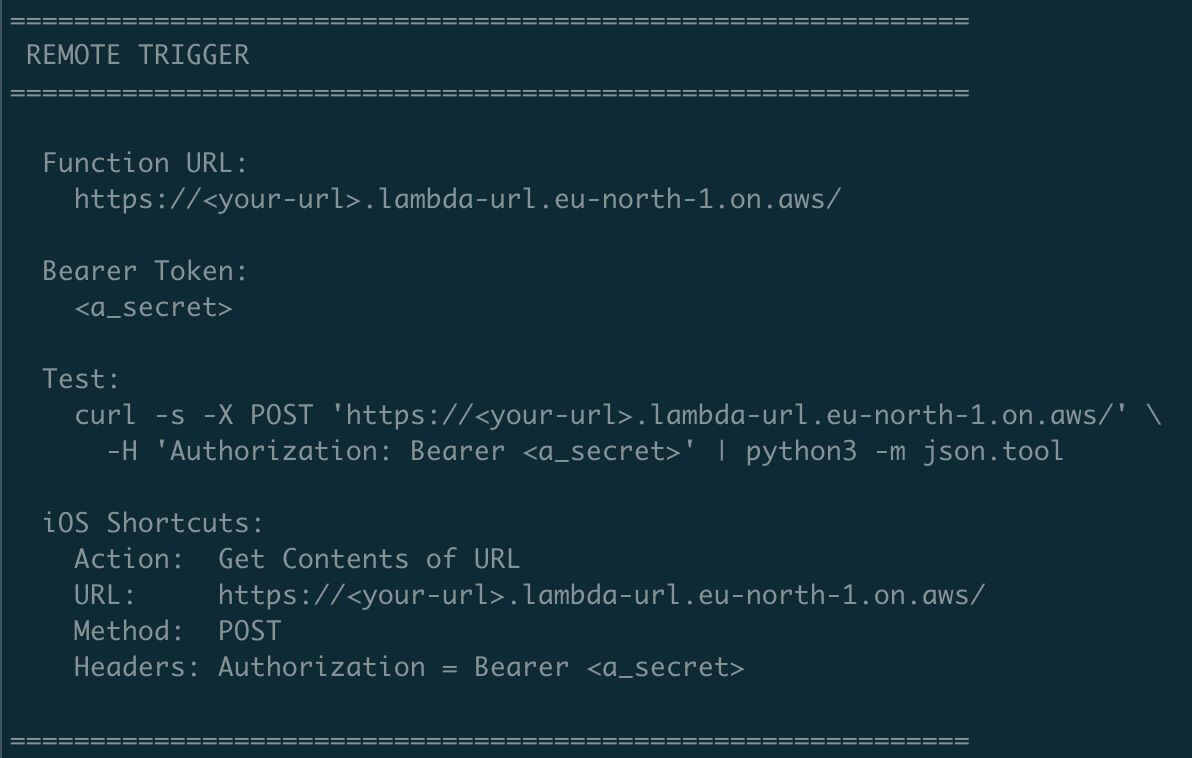
Another neat thing is that you can install a simple way to trigger the agent to run. deploy-trigger.sh sets up a protected web trigger that can easily be added as an iOS shortcut, so you can run the agent any time you want.
Personalization, Improvements, and Expansion
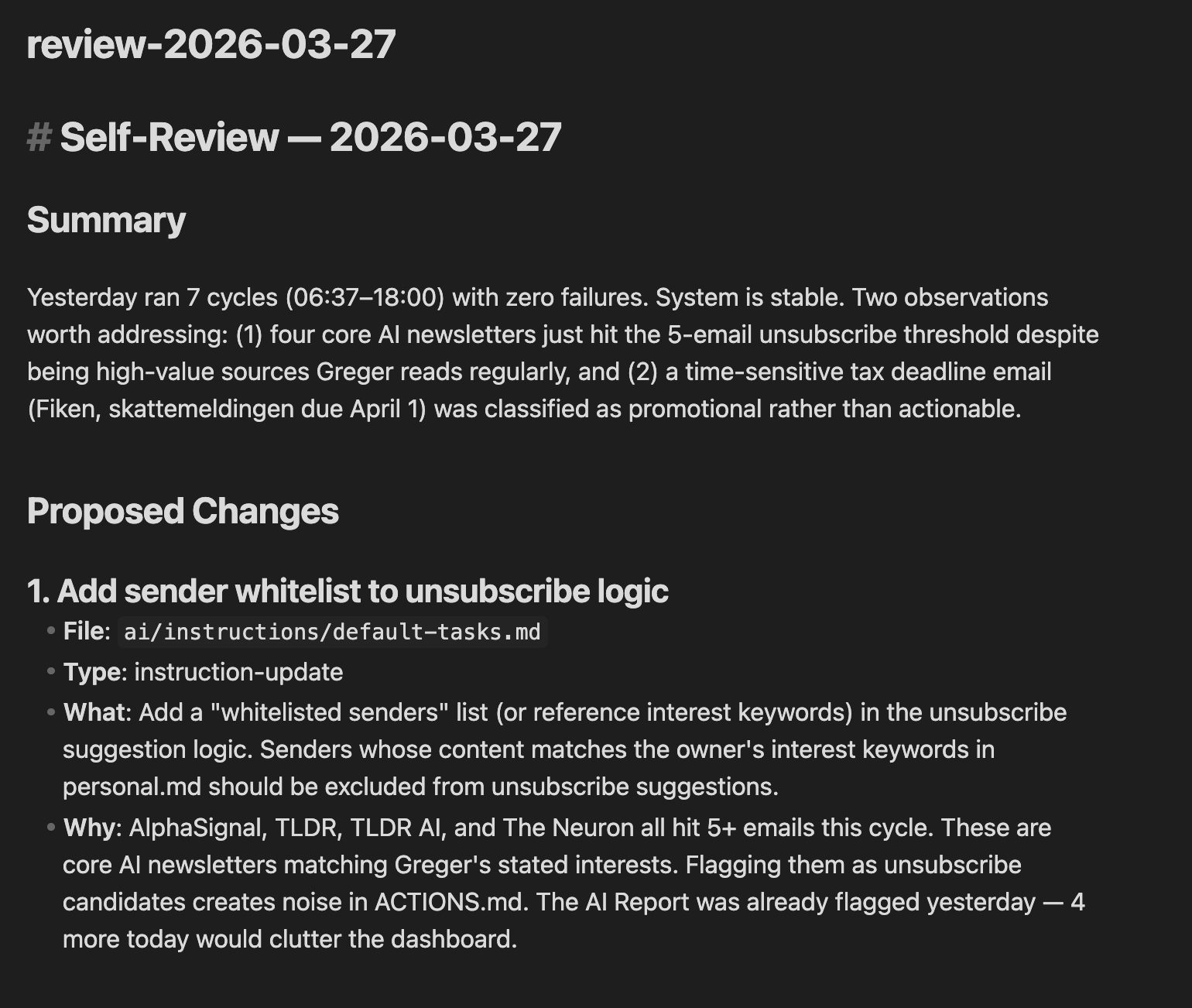
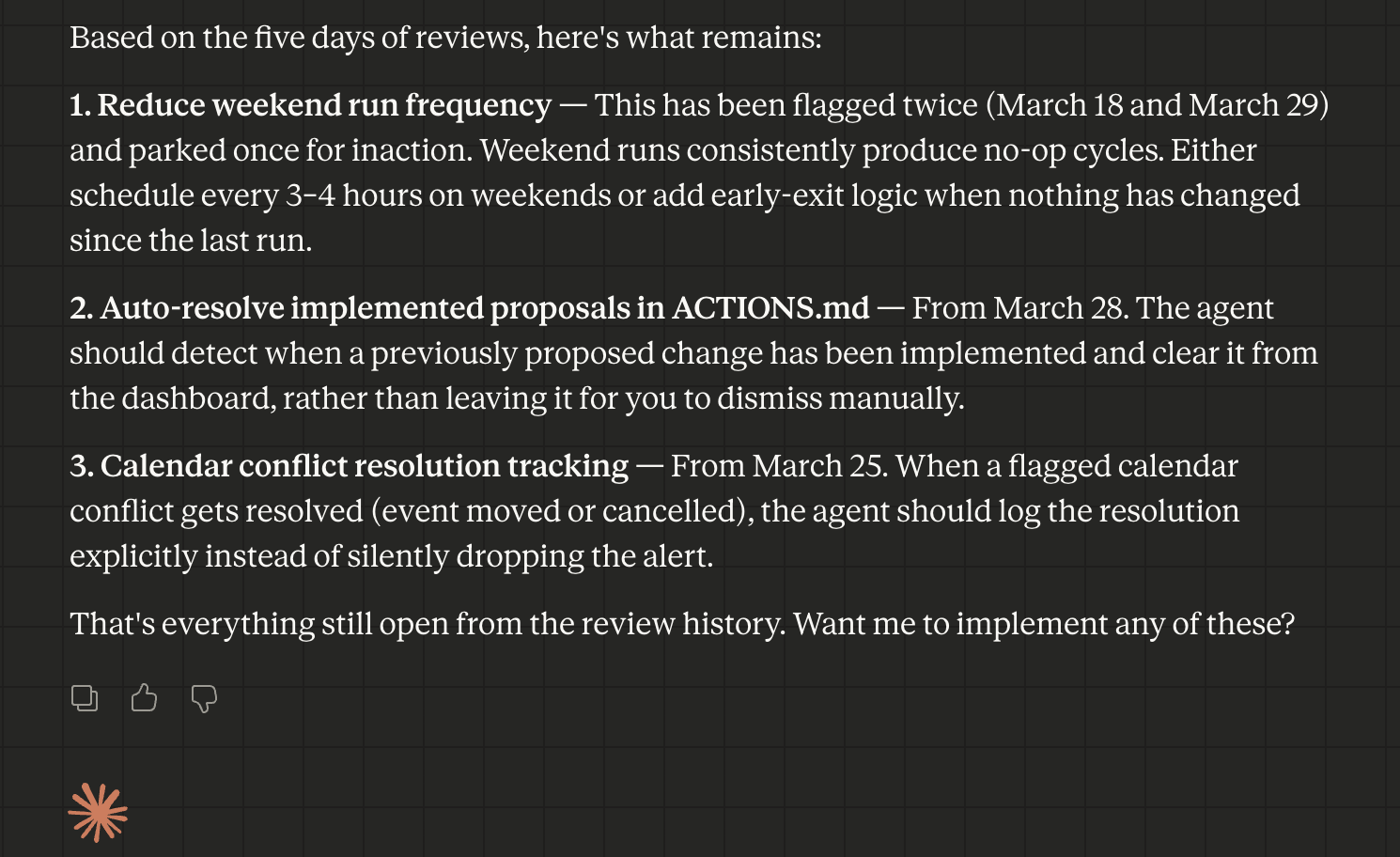
The nice thing about having all the instructions in a markdown workspace is that you can actually use Claude to iterate on its own instructions. For one, the Agentmail capability is “installable”, you can just ask Claude to add it to the agent’s instructions. But since the agent also reflects daily over how it’s doing, you can ask Claude to review the latest reflections and ask it to make those improvements.
Here are an example self-review reflection.
Here’s what Claude summarized for me.
Since the repo is fully configured for Claude and Claude as the agent can read the instructions as well as self-reflect, the possibilities of improving and iterating on your setup are endless.
Only one word of caution: your brain directory needs to be backed up, and ideally with versioning either using a service like Dropbox or use git. If you have created a new capability or have suggestions for improvements to the agent setup itself, submit an issue on Github.
Have fun!
 RSS - Posts